
The best journal is the one that fits into the seam between two things you were already doing. Dayleaf 2.2 is built around that seam: widgets on the iPhone Home Screen and Lock Screen, and stamps on the Apple Watch face, so the most common journal actions take one tap — and a few take none.
The Today widget (iPhone)
Small or medium, Home Screen or Lock Screen. It shows today's date, your writing streak, today's goals, and the stickers stamped so far. Goals tick off right on the widget — no app launch — and the New Entry button drops you straight into today's page. It updates as you write.
The Sticker Stamp widget (iPhone)
A small square that stamps one sticker on today when tapped. Long-press it → Edit Widget → choose the sticker: any of the built-in twenty or any you've designed. Add several in a row and you have a one-tap panel for whatever you count — water, mood, a habit, a craving. Repeat taps stack into a tally: ×3.
Sticker Stamp on the watch face
The same idea as a complication. Long-press the face → Edit → pick a slot → Dayleaf → Sticker Stamp, then choose the sticker in the list — exactly the way World Clock lets you choose a city. Your own stickers and the ones you use most sit at the top. Tap: stamped. Tap again: ×2. There's a second Sticker Stamp · More complication for the rest of the list, and a Stickers complication that opens the full grid for anything else.
Voice, from the wrist
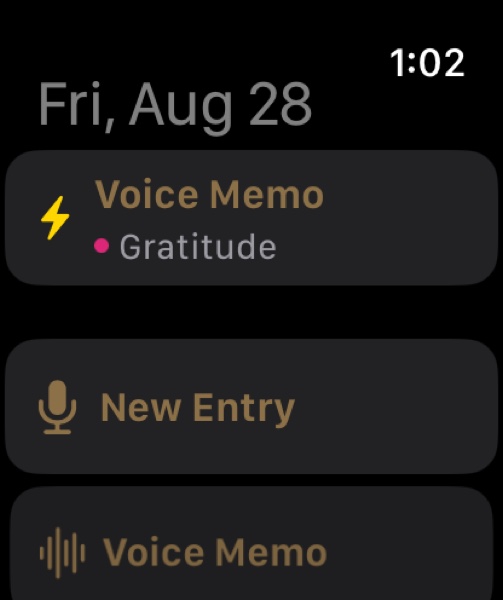
Dayleaf's own complication opens the app and, if you've set up One-Tap Capture, starts dictation immediately. Say the sentence, lower your wrist, done. Transcripts land on today's page.
Routines people run on these
- Count distractions with a double tap — the tally-counter-ring trick, automated.
- A one-tap water tally — hydration without the data entry.
- Log cravings and urges — urge surfing with a trace.
- A one-tap mood check-in — three stickers on the Home Screen.
- The frictionless baby log — feeds, naps and diapers from the wrist.
- Count deep-work blocks — Pomodoro without the tomatoes.
On more than one device
Your journal lives on the device you write it on. To carry it to an iPad or a Mac, back up to iCloud from Settings on one device and restore on the other — it brings everything, stamps included. Restore replaces what's on the receiving device, so treat it as moving the journal rather than merging two: pick one device as the place you write, and restore onto the others when you want them caught up.
Where it all ends up
Every stamp and tick lands on a date in your calendar. Days with several stickers show them beside the date, tallies as small pills; the timeline shows each day's stickers and lets you filter by one. It's still a journal — the widgets just move the door closer.
